WordPress shortcodes still work in the Block Editor. If you are wondering how to use shortcodes in Gutenberg, the simplest answer is: add a Shortcode block, paste your shortcode inside it, and preview the page on the front end.
You can also paste some shortcodes into a Paragraph block, especially when a plugin supports that workflow. For users who do not want to write shortcode syntax manually,
Quick answer: use the WordPress Shortcode block for most standalone shortcodes, use a Paragraph block only when the shortcode fits naturally inside text, and use Shortcodes Ultimate when you want to choose an element, configure options, and insert the generated shortcode without memorizing syntax.

Do shortcodes still work in the WordPress Block Editor?
Yes. WordPress shortcodes still work in the Block Editor, often called Gutenberg. The editor is built around blocks, but WordPress can still process shortcode syntax when it appears in a supported place, such as the built-in Shortcode block.
Shortcodes are still useful for dynamic content, reusable elements, older content workflows, and plugin-generated layouts. Many WordPress sites already depend on shortcodes for galleries, buttons, accordions, forms, sliders, downloads, and other content elements.
The main difference is placement. In the Classic Editor, users often pasted shortcodes into one large content field. In the Block Editor, it is clearer to place standalone shortcode output inside a dedicated block. Some shortcodes may also render differently in the editor preview than they do on the published page, so always check the front end before publishing important changes.
For official background on the native block, you can refer to the WordPress Shortcode block documentation.
The easiest way: use the Shortcode block
The WordPress Shortcode block is the best default choice for most standalone shortcode output. It keeps the shortcode separate from surrounding text, makes the editor layout easier to understand, and clearly tells future editors that the content inside the block is meant to be processed as a shortcode.
Add a Shortcode block
- Open a post or page in the WordPress Block Editor.
- Click the block inserter +.
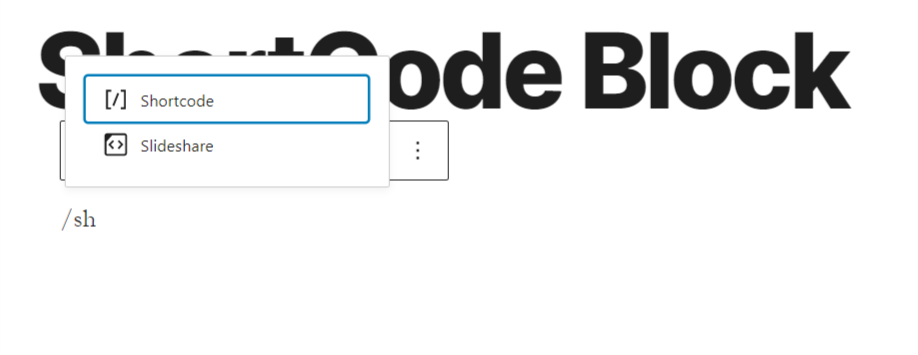
- Search for Shortcode, or type
/shortcodedirectly in the editor. - Select the Shortcode block.
- Paste your shortcode into the block.
- Preview or publish the page, then check the front end to confirm the output works as expected.
For example, a simple WordPress gallery shortcode could look like this:
[gallery ids="123,456,789"]When you are teaching readers or documenting syntax, place shortcode examples in Code blocks, as shown above. If you put the same shortcode into a Shortcode block, WordPress may try to execute it instead of showing the syntax to the reader.
Can you paste a shortcode into a Paragraph block?
Sometimes, yes. Some WordPress Block Editor shortcodes can be pasted into a Paragraph block and still work, especially when they are simple, inline-friendly, or supported by a specific plugin workflow. This can be convenient when a shortcode is part of a sentence or a small piece of surrounding text.
However, for standalone output, the Shortcode block is usually clearer. A shortcode that creates a gallery, accordion, button group, form, or layout element should normally sit in its own block. That makes the page easier to edit and reduces confusion for other users who may update the content later.
Important: use a Code block when you want to show shortcode syntax to readers. Use a Shortcode block when you want WordPress to process the shortcode.
Insert shortcodes visually with Shortcodes Ultimate
You can always paste shortcodes manually. Shortcodes Ultimate is helpful when you want to choose an element visually, configure options, and avoid writing shortcode syntax by hand.
In the Block Editor, Shortcodes Ultimate supports workflows where shortcodes can be inserted into Shortcode blocks, Paragraph blocks, and Classic blocks. Instead of remembering attributes, quotes, nesting rules, or exact shortcode names, you can use the Insert Shortcode tool to generate the shortcode for you.
This is especially useful for content elements such as buttons, tabs, accordions, spoilers, boxes, sliders, galleries, and other reusable interface components. You choose the element, adjust its settings, and insert the generated shortcode into your content.
Recommended setup in the Block Editor
- Open the WordPress Block Editor for any post or page.
- Select a Paragraph block, Shortcode block, or Classic block.
- Click the Insert Shortcode button.
- Choose the content element you want to add.
- Configure the available options in the visual picker.
- Insert the generated shortcode and preview the page on the front end.


For more product-specific guidance, see the Shortcodes Ultimate documentation and the list of available shortcodes.
Which shortcode insertion method should you use?
There is no single method that is best for every situation. The right choice depends on the type of shortcode, the user’s editing workflow, and whether the shortcode is being written manually or generated by a plugin.
| Method | Best for | Pros | Notes |
|---|---|---|---|
| Shortcode block | Most standalone shortcodes | Native, simple, and clear | Best default choice for adding a shortcode in Gutenberg |
| Paragraph block | Inline or simple plugin-supported shortcodes | Quick and works in normal text flow | Test the front end because not every shortcode belongs in a paragraph |
| Shortcodes Ultimate Insert Shortcode workflow | Users who do not want to write syntax manually | Visual picker, configurable options, and fewer syntax mistakes | Requires the correct user permissions |
| Classic block | Legacy content workflows | Useful for older content and familiar editing patterns | Helpful for maintenance, but not the first choice for new posts |
Practical shortcode examples
The following examples are shown inside Code blocks so they display as syntax instead of being executed by WordPress. Exact options depend on the shortcode you choose. The Shortcodes Ultimate Insert Shortcode workflow can help generate valid syntax without requiring you to type every attribute manually.
A button shortcode may include a URL, target behavior, style, and button text:
[su_button url="https://example.com" target="blank" style="flat"]Download now[/su_button]An accordion can contain multiple spoiler items, each with its own title and content:
[su_accordion]
[su_spoiler title="What is included?" open="yes"]Your hidden content goes here.[/su_spoiler]
[su_spoiler title="Can I customize it?"]Yes, you can adjust options in the shortcode settings.[/su_spoiler]
[/su_accordion]
Tabs are another common example of nested shortcode structure:
[su_tabs]
[su_tab title="First tab"]First tab content.[/su_tab]
[su_tab title="Second tab"]Second tab content.[/su_tab]
[/su_tabs]
Developers can also output trusted shortcodes in template files with do_shortcode(), but this should be used carefully and only with shortcode content you control:
<?php echo do_shortcode('[su_button url="https://example.com"]Click me[/su_button]'); ?>Best practices for using shortcodes in Gutenberg
- Use the Shortcode block for standalone shortcode output.
- Use Code blocks when you are teaching or displaying shortcode syntax.
- Keep shortcodes readable and avoid overly complex nested structures when possible.
- Preview the final page on the front end, not only inside the editor.
- Keep shortcode plugins updated and avoid relying on shortcodes from inactive plugins.
- Use descriptive surrounding headings and text for SEO, rather than relying on hidden or generated output as the only meaningful content.
- Add useful alt text to screenshots and images.
- Document reusable shortcode patterns for editors, especially on sites maintained by teams or agencies.
Shortcodes can be very practical, but they should not make the page harder to maintain. When a shortcode becomes long, deeply nested, or difficult for editors to understand, consider documenting the pattern or generating it with a visual tool instead of typing it manually.
Troubleshooting: shortcode not working in Gutenberg
If a shortcode is not working in the WordPress Block Editor, the problem is usually related to placement, plugin status, syntax, permissions, theme styling, caching, or front-end assets. Work through the checks below before rebuilding the page.
The shortcode appears as plain text
If the shortcode appears as plain text, first check where it was inserted. A shortcode shown inside a Code block is being displayed intentionally and will not execute. If you want WordPress to process the shortcode, move it into a Shortcode block or another supported location.
Also check that the plugin providing the shortcode is active, the shortcode name is correct, and the brackets or quotation marks were not changed during copy and paste. Smart quotes, missing closing tags, or a typo in the shortcode name can prevent the output from rendering correctly.
The Insert Shortcode button is missing
If the Shortcodes Ultimate Insert Shortcode button is not showing, check your user role and permissions. Access to insertion tools may depend on a required user capability such as manage_options, which is usually available to Administrator or Super Admin roles.
This is not just a visual issue. It is connected to security because shortcode tools can expose powerful features. Do not lower capability requirements casually. If you change permission settings, do it intentionally and only for trusted roles that should be allowed to insert advanced shortcode output.

The shortcode works in the editor but looks wrong on the front end
If the shortcode renders but looks broken on the published page, the issue may be related to theme CSS, caching, minification, missing plugin assets, or a JavaScript conflict. Clear caches, temporarily disable aggressive optimization settings, and check whether the same shortcode works with a default theme or a minimal plugin setup.
Some shortcode output also depends on the options selected in the shortcode settings. If you generated the shortcode visually, reopen the shortcode configuration and review spacing, style, alignment, color, and responsive settings.
The shortcode does not preview correctly inside the editor
Some shortcodes render best on the front end rather than inside the editor preview. This is common when the output depends on scripts, theme styles, sliders, tabs, accordions, or dynamic assets that are loaded differently outside the editor.
Use Preview in a new tab before publishing major changes. If the shortcode looks correct on the front end, the editor preview may simply be limited. If it fails on the front end too, continue troubleshooting plugin status, syntax, permissions, assets, and conflicts.
If you still need help, check your plugin documentation or contact support with the shortcode, page URL, user role, and a short description of what happens in the editor and on the front end.
FAQ
Do shortcodes still work in Gutenberg?
Yes. WordPress still processes shortcodes in the Block Editor. The cleanest native method is usually the Shortcode block, especially for standalone output such as galleries, forms, buttons, accordions, and plugin-generated content.
What is the WordPress Shortcode block?
The WordPress Shortcode block is a built-in block designed for shortcode syntax. You add the block, paste the shortcode into it, and then preview or publish the page so WordPress can process the shortcode output.
Should I use a Shortcode block or a Paragraph block?
Use the Shortcode block for most standalone shortcode output. Use a Paragraph block only when the shortcode is intended to sit within normal text or when your plugin workflow specifically supports that placement. In both cases, test the final page on the front end.
Does Shortcodes Ultimate work with the Block Editor?
Yes. Shortcodes Ultimate supports Block Editor workflows and can help generate shortcode syntax through a visual picker. You can choose an element, configure its options, and insert the generated shortcode into supported blocks.
Why can’t I see the Insert Shortcode button?
The likely cause is permissions. In Shortcodes Ultimate, the Insert Shortcode button may require an administrator-level capability such as manage_options. This is a security-related setting because shortcode insertion tools can expose powerful features.
Can I use shortcodes in WordPress templates?
Developers can output shortcodes in templates with do_shortcode(), but this should be used carefully and only with trusted shortcode content. For normal content editing, the Shortcode block is usually safer and easier for editors to maintain.
Conclusion
Shortcodes still work in Gutenberg, and the built-in WordPress Shortcode block is the easiest native method for most standalone shortcode output. Paragraph blocks can work in some cases, but they are better for inline or plugin-supported workflows than for large shortcode-generated elements.
Shortcodes Ultimate is useful when you want a visual shortcode picker instead of writing shortcode syntax manually. It helps editors choose an element, configure options, and insert the generated shortcode directly into WordPress content.
Want a visual shortcode picker instead of writing shortcodes manually? Try Shortcodes Ultimate.