Step 1
Open Custom Shortcodes
Dashboard -> Shortcodes -> Custom shortcodes
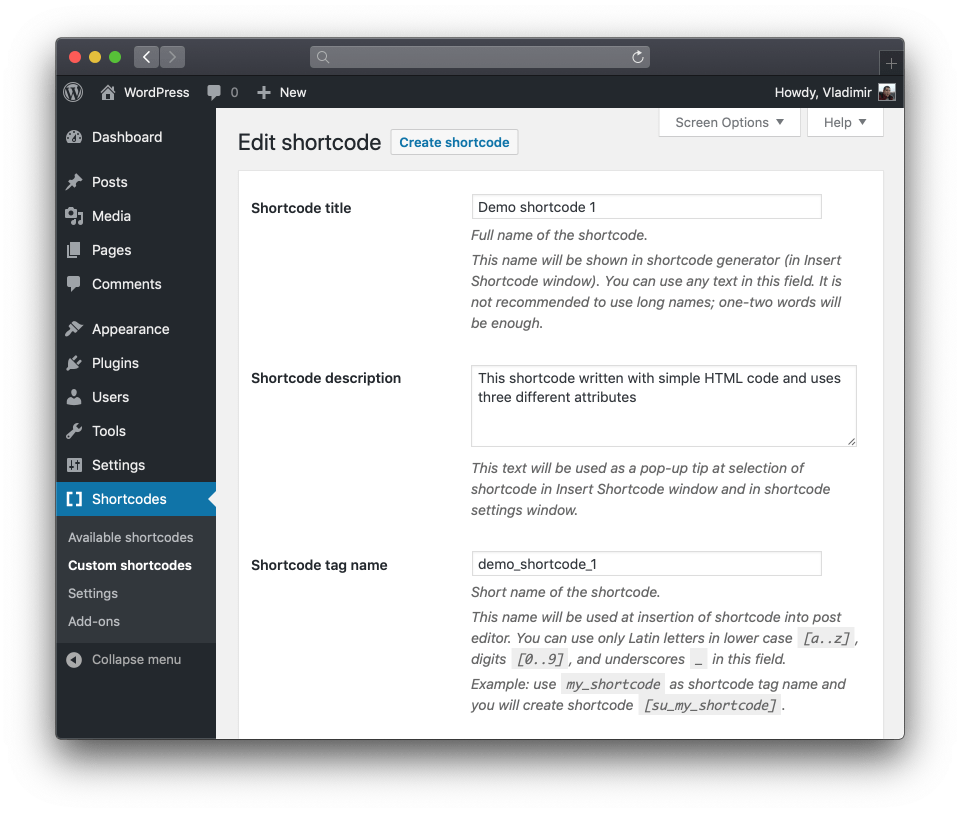
Start from the Custom shortcodes screen in WordPress admin. This is where your dashboard-managed shortcodes live.

Shortcodes Ultimate Pro feature
Create your own reusable WordPress shortcodes from the dashboard. With Shortcode Creator, you can add custom shortcodes using PHP or HTML, define attributes, choose an icon, and make them available in the Shortcodes Ultimate generator - without editing theme files.
To add a custom shortcode in WordPress manually, you usually need to write a PHP callback function and register it with WordPress using add_shortcode(). With Shortcode Creator, you can add a custom shortcode from the WordPress dashboard instead: create a shortcode, add attributes, write PHP or HTML, choose an icon, save it, and insert it through Shortcodes Ultimate.
In WordPress, "add shortcode" can mean two different things. Some users want to paste an existing shortcode into a page. Others want to add their own custom shortcode to WordPress. This page focuses on the second case: creating and adding your own reusable custom shortcode.
| Search intent | What the user means | What this page covers |
|---|---|---|
| Add an existing shortcode | Paste [shortcode] into a page, post, widget, or builder. | Mentioned briefly |
| Add a custom shortcode | Create your own shortcode and make it available in WordPress. | Main focus |
| Create a custom shortcode | Write PHP or HTML logic and define attributes. | Main focus |
| Add shortcode without editing files | Avoid functions.php, FTP, and theme file editing. | Main product angle |
This guide focuses on adding your own custom shortcode to WordPress - not just pasting an existing shortcode into a post.
function my_custom_notice_shortcode($atts, $content = null) {
    $atts = shortcode_atts(
        array(
            'type' => 'info',
        ),
        $atts
    );

    return '<div class="notice notice-' . esc_attr($atts['type']) . '">' .
        esc_html($content) .
    '</div>';
}

add_shortcode('custom_notice', 'my_custom_notice_shortcode');
[custom_notice type="warning"]This is an important message.[/custom_notice]Traditionally, adding a custom shortcode to WordPress means writing a PHP function and registering it with add_shortcode().
Manual shortcode creation usually means:
Shortcode Creator gives you a cleaner workflow. Instead of editing theme files, you can add and manage custom shortcodes directly from the WordPress dashboard.
Shortcode Creator gives you a cleaner way to add custom shortcodes to WordPress. Instead of editing theme files or registering every shortcode manually, you create and manage your custom shortcodes from the WordPress dashboard.
You still control the output with PHP or HTML, but Shortcode Creator gives you the interface around it: shortcode title, tag name, description, default content, icon, attributes, and code editor.
Shortcode Creator does not remove the need for PHP or HTML when your shortcode requires custom logic. It removes the need to edit theme files, create a separate plugin, use FTP, or manually register every shortcode.
Create the shortcode once, expose the settings editors need, and keep insertion inside the same Shortcodes Ultimate workflow.
Dashboard -> Shortcodes -> Custom shortcodes
Start from the Custom shortcodes screen in WordPress admin. This is where your dashboard-managed shortcodes live.
Name: Custom Notice / Tag: custom_notice
Use a clear name for editors and a unique tag for the shortcode syntax. In Shortcodes Ultimate output, custom tags use the plugin shortcode workflow.
title, type, color, url, content
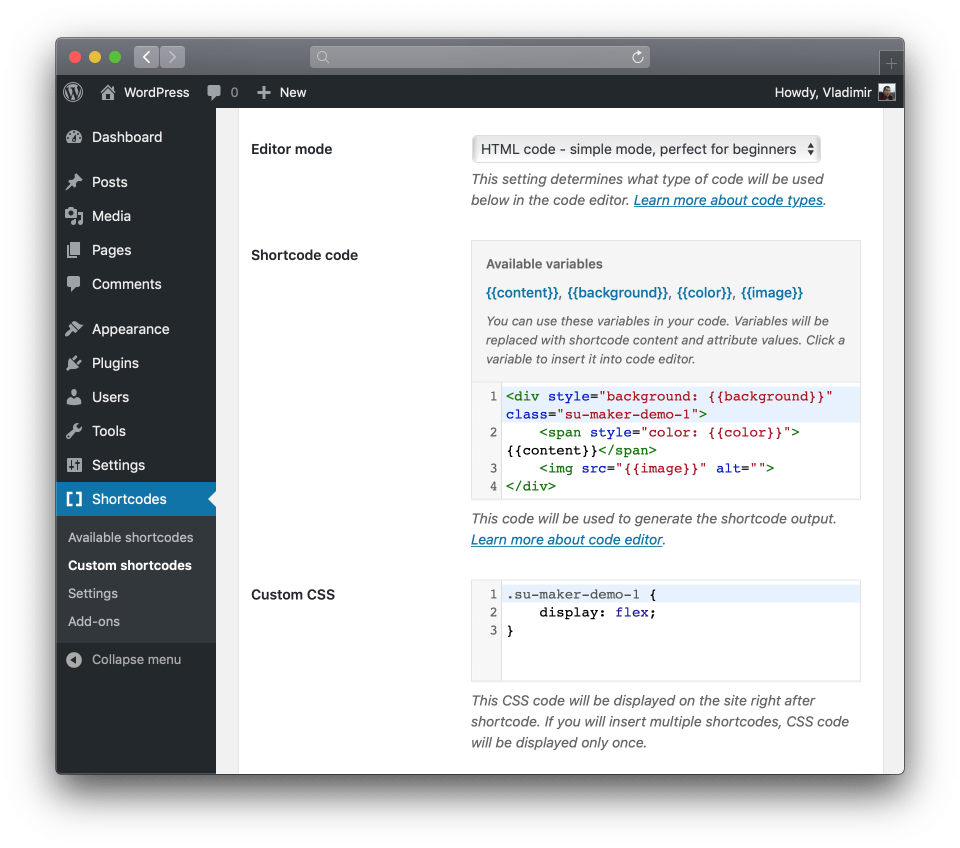
Attributes work as configurable shortcode settings. Expose fields such as text, color, dropdown, URL, icon, image, media, or switch controls instead of hardcoding every value.

HTML template or PHP return value
Shortcode Creator is not a magic no-code PHP generator. It gives you a dashboard-based workflow for turning your PHP or HTML into reusable WordPress shortcodes.
Icon field in the shortcode editor
Choose an icon so the custom shortcode is easy to recognize in the Shortcodes Ultimate generator.

Save and reuse
After saving, your custom shortcode becomes reusable in posts, pages, widgets, builders, and other areas where WordPress shortcodes are supported.

Insert shortcode -> choose custom shortcode -> fill fields
Editors can choose the custom shortcode, fill in its fields, and insert it visually instead of typing shortcode syntax manually.
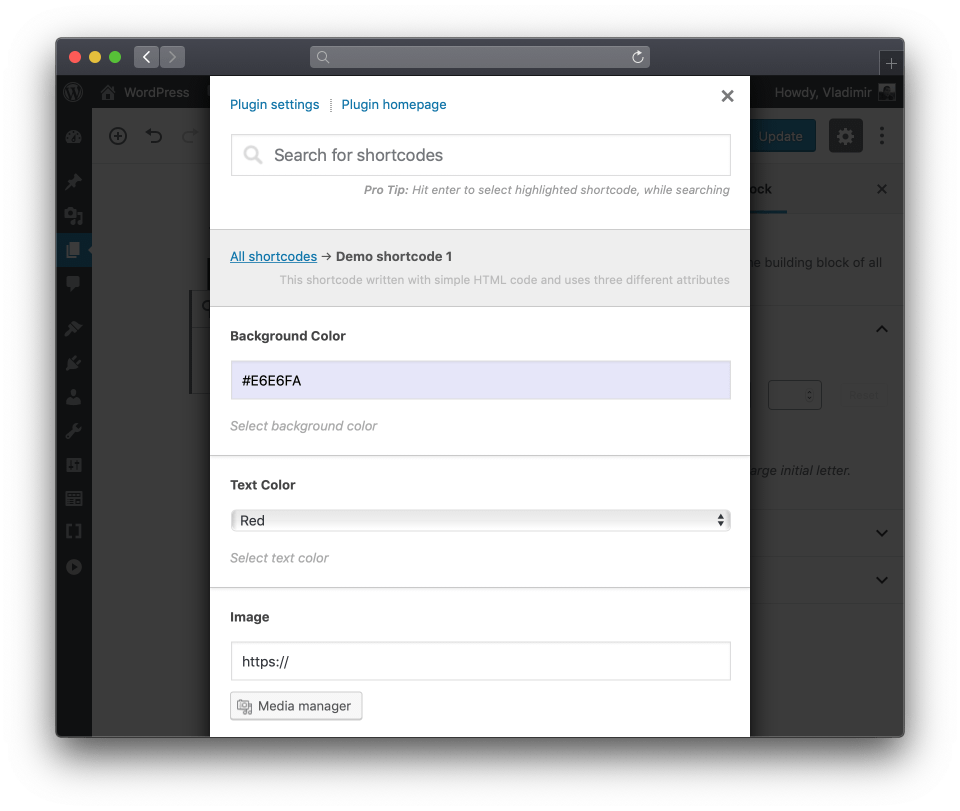
Attributes work as configurable shortcode settings. Instead of hardcoding every value, you can expose fields such as text, color, dropdown, URL, icon, image, or switch controls.
That turns a custom shortcode from a one-off code snippet into a reusable component editors can configure without touching the PHP or HTML you wrote.
| Attribute | Field type | Example |
|---|---|---|
title |
Text | Important update |
type |
Dropdown | info / warning / success |
color |
Color | #f7f7f7 |
content |
Content | Message text |
With Shortcode Creator, adding a shortcode is not just about pasting shortcode text into a page. You add a new shortcode to your WordPress admin, configure its fields, and make it available for repeated use.
Once added, your custom shortcode can be inserted into posts, pages, widgets, builders, and other areas where WordPress shortcodes are supported.
| Task | Manual WordPress method | With Shortcode Creator |
|---|---|---|
| Add a custom shortcode | Use PHP add_shortcode() | Add it from the dashboard |
| Edit files | Usually functions.php or plugin files | No theme file editing |
| Write output | PHP callback | PHP or HTML in a built-in editor |
| Add attributes | Code manually | Configure attributes visually |
| Add field types | Build manually | Use text, number, color, dropdown, switch, icon, media, and more |
| Add icon | Not available by default | Choose an icon |
| Insert shortcode | Type syntax manually | Use the Shortcodes Ultimate generator |
| Client/editor workflow | Requires instructions | Easier visual insertion |
| Maintenance | Code-file based | Dashboard-managed |
See how Shortcode Creator lets you create a custom shortcode, add attributes, write PHP or HTML, choose an icon, and insert the shortcode through Shortcodes Ultimate.
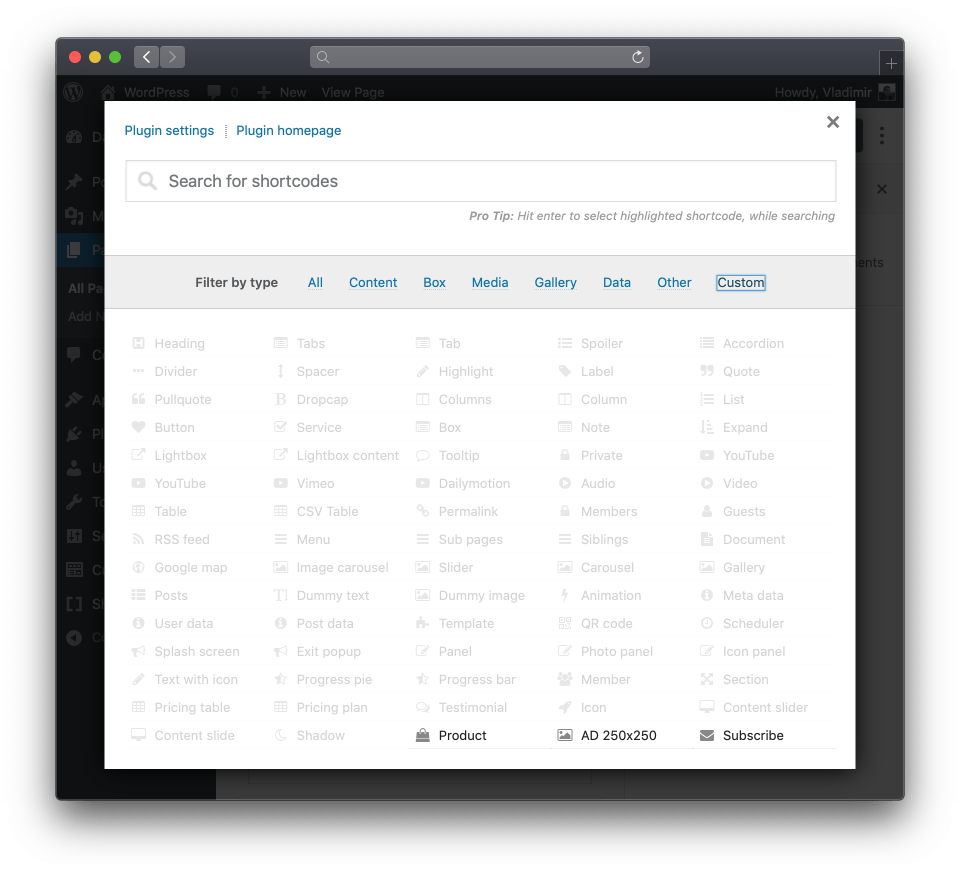
Shortcode Creator is part of the Shortcodes Ultimate ecosystem. That means your custom shortcodes can live alongside ready-made shortcodes, visual insertion tools, and editor-friendly workflows.
Shortcodes Ultimate helps WordPress users create reusable content elements faster. With Shortcode Creator, developers and site owners can go one step further and add their own custom shortcodes without editing theme files.
For ready-made Shortcodes Ultimate elements, you can usually configure and insert shortcodes visually. For your own custom shortcodes, you still need to provide the HTML or PHP that generates the output.
The advantage of Shortcode Creator is that you can do this from the WordPress dashboard - without editing theme files, creating a separate plugin, or manually registering every shortcode with add_shortcode().
Write the code once in the dashboard. Reuse it everywhere as a shortcode. Insert it visually.
You can add a custom shortcode manually with PHP using add_shortcode(), or use Shortcode Creator to create and manage custom shortcodes from the WordPress dashboard.
Adding a shortcode can mean pasting an existing shortcode into content. Adding a custom shortcode means creating your own shortcode tag, output, attributes, and reusable behavior.
Yes. Shortcode Creator lets you add custom shortcodes from the WordPress dashboard instead of editing functions.php or theme files.
Yes, if your custom shortcode requires custom output or logic. Shortcode Creator provides the editor and management interface, but you still define the PHP or HTML.
Yes. Attributes let you create configurable shortcode settings such as text, color, URL, dropdown, number, switch, icon, image, media, and other fields.
Yes. The goal is to make your custom shortcode available for easier insertion through the Shortcodes Ultimate workflow.
Conceptually, yes: both approaches add a shortcode to WordPress. The difference is that add_shortcode() is the manual PHP method, while Shortcode Creator provides a dashboard interface for creating and managing custom shortcodes.
Yes. A developer or site owner can create the shortcode once, define its attributes, and then editors can insert it through the Shortcodes Ultimate generator.
In most WordPress workflows, custom shortcodes can be used wherever WordPress shortcodes are supported, including posts, pages, widgets, builders, and template areas depending on the setup.
Shortcodes that depend on a plugin usually stop rendering correctly when that plugin is deactivated. This is a normal consideration for plugin-based shortcode workflows.
Create custom shortcodes from the WordPress dashboard - no theme file editing required.